Skip to content
  • Home
  • Pricing
  • Support
  • Download
  • My account
auto rigger
  • Home
  • Pricing
  • Support
    • Documentation
    • Tutorials
    • Create A Ticket
    • Contact Us
    • Changelog
  • Download
MY ACCOUNT
auto rigger

Setup Arise

6
  • Introduction
  • System Requirements
  • Create Account / Login
  • Installation
  • License Activation Instructions
  • Troubleshooting

Getting Started Tutorial

8
  • Interfaces (UI)
  • How To Prepare The Model For Rigging?
  • What Are Nodes, Attachments, and Presets?
  • What Are Guides?
  • What is The Attribute Editor?
  • Let’s Start Rigging
  • How To Export Rigs?
  • Digging Deeper

Elements

29
  • Node
  • Attachment
  • Presets
  • Attribute Editor And Attributes Types
  • Workspace
  • Outliner
  • Guides
  • Connections
  • Loading/Saving
  • Placeholders
  • Dump_grp
  • Skinning Joints
  • Poses
  • Group Node
  • Rig Base Node
  • Helper Tools
  • Preferences
  • Scene Settings
  • Log Viewer
  • Model Validation Checks
  • Model Updater
  • AI Auto Guides Placement
  • Rig Mocap Tester
  • Rig Export
  • Batch Menu
  • Sticky Note
  • API Commands
  • Custom Ctrls Shapes
  • Ctrl Shapes Lookup

How To Create Your Own Node

6
  • The Basics On How To Create Your Own Node
  • Creating Attributes
  • Creating Guides
  • IoJoint
  • IoTransform
  • Example Node Module

How To Create Your Own Attachment

1
  • Creating Custom Attachments in Arise

Basic Nodes

8
  • Base Node
  • One Joint
  • FK Chain
  • IK Chain
  • Two Joints IK
  • Dynamic FK Chain
  • Eye
  • Path

CA Nodes

12
  • CA_Spine
  • CA Head
  • CA Leg
  • CA Arm
  • CA Fingers
  • CA_Mouth
  • CA Eye
  • CA Quadruped Back Leg
  • CA Quadruped Front Leg
  • CA Ribbon
  • CA Tentacle
  • CA Wing

Attachments

22
  • SpaceSwitch
  • CtrlsShape
  • CtrlsSettings
  • MakeDynamic
  • FollowSkeleton
  • PostScript
  • MovablePivot
  • HelperJoints
  • Rename
  • AttributesSettings
  • CustomDriver
  • CustomDriven
  • ManualConnections
  • AddJoints
  • AddGroupAbove
  • JointsSettings
  • Parent
  • AddAttribute
  • ConnnectAttribute
  • HumanIK
  • CtrlsLockHideAttributes
  • CtrlsLimitAttributes

Mechanical

2
  • Vehicle Body
  • Wheel
View Categories
  • Home
  • Arise Docs
  • Elements
  • Presets

Presets

Presets are pre-configured “recipes” of nodes and attachments that generate fully functional character rigs, such as ‘Biped’, ‘Dog’, ‘Spider’, and more. Internally, presets are simply saved Arise scenes in ‘.ion‘ format.

By working with presets, you can explore how various nodes, attachments, and connections come together to form complete rigs. They provide an excellent starting point for learning and using Arise.
Presets are fully customizable, giving you the freedom to modify them to suit your specific needs.
For example, you can create a biped with four arms by starting with the Biped preset, adding two additional Arm nodes, and connecting them to the appropriate nodes in the preset.

This flexibility allows you to use presets as a foundation while tailoring rigs to match unique character requirements.

Loading A Preset: #

Presets can be loaded into your scene in the following ways:

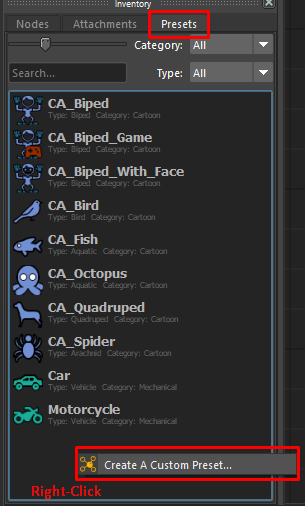
  1. Double-click to load: In the ‘Presets‘ tab of the ‘Inventory‘ docked widget, double-click on a preset from the list.
  2. Drag-and-drop: In the same tab, drag and drop a preset directly into the workspace. 

Creating A Custom Presets:
You can save the current Arise scene as a preset for future reuse. To do so:

  1. Right-click in the ‘Presets‘ tab of the ‘Inventory‘ widget.
  2. Select ‘Create a Custom Preset‘ from the context menu.
A window will appear prompting you to provide the following details:

  • Preset Name: Enter a descriptive name for the preset.
  • Minimum Supported Maya Version: Specify the earliest version of Maya compatible with this preset. This value typically does not need to be changed from the default.
  • Rig Category: Define the category of the rig (used for filtering).
  • Rig Type: Specify the type of rig (used for filtering).
  • Tags: Add relevant keywords separated by commas. These will be used for search bar filtering.
  • ToolTip: Write a brief description that appears when hovering over the preset in ‘Inventory‘ widget.
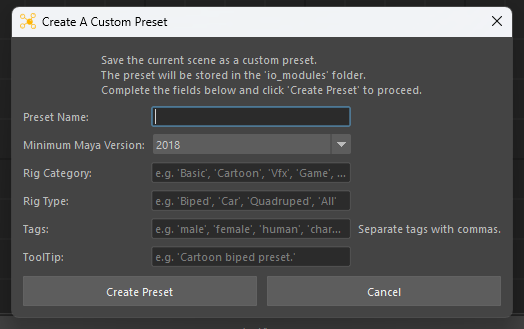


Once all details are entered, click ‘Create Preset’. The tool will automatically generate the necessary folder and file structure and save the current Arise scene within it.

To delete a custom preset:

  1. In the ‘Presets‘ tab of the ‘Inventory‘ window, locate the preset you want to remove.
  2. Right-click on the preset and select ‘Delete Custom Preset’ from the context menu.

Note: Only custom presets can be deleted; default presets are protected and cannot be removed.

_____________________________________________
Get Arise at: https://www.ariserigging.com
Follow on LinkedIn 

Updated on May 13, 2026

What are your Feelings

Share This Article :

  • Facebook
  • X
  • LinkedIn
  • Pinterest
AttachmentAttribute Editor And Attributes Types
Table of Contents
  • Loading A Preset:
  • Home
  • Pricing
  • Support
  • My account
  • Privacy Policy
  • EULA

Copyright © 2026 - Arise Rigging System

This website uses cookies to ensure you get the best experience. By using this site, you agree to our use of cookies.
Accept
Manage consent

Privacy Overview

This website uses cookies to improve your experience while you navigate through the website. Out of these, the cookies that are categorized as necessary are stored on your browser as they are essential for the working of basic functionalities of the website. We also use third-party cookies that help us analyze and understand how you use this website. These cookies will be stored in your browser only with your consent. You also have the option to opt-out of these cookies. But opting out of some of these cookies may affect your browsing experience.
Necessary
Always Enabled
Necessary cookies are absolutely essential for the website to function properly. These cookies ensure basic functionalities and security features of the website, anonymously.
CookieDurationDescription
cookielawinfo-checkbox-analytics11 monthsThis cookie is set by GDPR Cookie Consent plugin. The cookie is used to store the user consent for the cookies in the category "Analytics".
cookielawinfo-checkbox-functional11 monthsThe cookie is set by GDPR cookie consent to record the user consent for the cookies in the category "Functional".
cookielawinfo-checkbox-necessary11 monthsThis cookie is set by GDPR Cookie Consent plugin. The cookies is used to store the user consent for the cookies in the category "Necessary".
cookielawinfo-checkbox-others11 monthsThis cookie is set by GDPR Cookie Consent plugin. The cookie is used to store the user consent for the cookies in the category "Other.
cookielawinfo-checkbox-performance11 monthsThis cookie is set by GDPR Cookie Consent plugin. The cookie is used to store the user consent for the cookies in the category "Performance".
viewed_cookie_policy11 monthsThe cookie is set by the GDPR Cookie Consent plugin and is used to store whether or not user has consented to the use of cookies. It does not store any personal data.
Functional
Functional cookies help to perform certain functionalities like sharing the content of the website on social media platforms, collect feedbacks, and other third-party features.
Performance
Performance cookies are used to understand and analyze the key performance indexes of the website which helps in delivering a better user experience for the visitors.
Analytics
Analytical cookies are used to understand how visitors interact with the website. These cookies help provide information on metrics the number of visitors, bounce rate, traffic source, etc.
Advertisement
Advertisement cookies are used to provide visitors with relevant ads and marketing campaigns. These cookies track visitors across websites and collect information to provide customized ads.
Others
Other uncategorized cookies are those that are being analyzed and have not been classified into a category as yet.
SAVE & ACCEPT