Skip to content
  • Home
  • Pricing
  • Support
  • Download
  • My account
auto rigger
  • Home
  • Pricing
  • Support
    • Documentation
    • Tutorials
    • Create A Ticket
    • Contact Us
    • Changelog
  • Download
MY ACCOUNT
auto rigger

Setup Arise

6
  • Introduction
  • System Requirements
  • Create Account / Login
  • Installation
  • License Activation Instructions
  • Troubleshooting

Getting Started Tutorial

8
  • Interfaces (UI)
  • How To Prepare The Model For Rigging?
  • What Are Nodes, Attachments, and Presets?
  • What Are Guides?
  • What is The Attribute Editor?
  • Let’s Start Rigging
  • How To Export Rigs?
  • Digging Deeper

Elements

29
  • Node
  • Attachment
  • Presets
  • Attribute Editor And Attributes Types
  • Workspace
  • Outliner
  • Guides
  • Connections
  • Loading/Saving
  • Placeholders
  • Dump_grp
  • Skinning Joints
  • Poses
  • Group Node
  • Rig Base Node
  • Helper Tools
  • Preferences
  • Scene Settings
  • Log Viewer
  • Model Validation Checks
  • Model Updater
  • AI Auto Guides Placement
  • Rig Mocap Tester
  • Rig Export
  • Batch Menu
  • Sticky Note
  • API Commands
  • Custom Ctrls Shapes
  • Ctrl Shapes Lookup

How To Create Your Own Node

6
  • The Basics On How To Create Your Own Node
  • Creating Attributes
  • Creating Guides
  • IoJoint
  • IoTransform
  • Example Node Module

How To Create Your Own Attachment

1
  • Creating Custom Attachments in Arise

Basic Nodes

8
  • Base Node
  • One Joint
  • FK Chain
  • IK Chain
  • Two Joints IK
  • Dynamic FK Chain
  • Eye
  • Path

CA Nodes

12
  • CA_Spine
  • CA Head
  • CA Leg
  • CA Arm
  • CA Fingers
  • CA_Mouth
  • CA Eye
  • CA Quadruped Back Leg
  • CA Quadruped Front Leg
  • CA Ribbon
  • CA Tentacle
  • CA Wing

Attachments

22
  • SpaceSwitch
  • CtrlsShape
  • CtrlsSettings
  • MakeDynamic
  • FollowSkeleton
  • PostScript
  • MovablePivot
  • HelperJoints
  • Rename
  • AttributesSettings
  • CustomDriver
  • CustomDriven
  • ManualConnections
  • AddJoints
  • AddGroupAbove
  • JointsSettings
  • Parent
  • AddAttribute
  • ConnnectAttribute
  • HumanIK
  • CtrlsLockHideAttributes
  • CtrlsLimitAttributes

Mechanical

2
  • Vehicle Body
  • Wheel
View Categories
  • Home
  • Arise Docs
  • Elements
  • Log Viewer

Log Viewer

ARISE’s ‘Log Viewer’ prints feedback on its operations, much like Maya’s ‘Script Editor’.
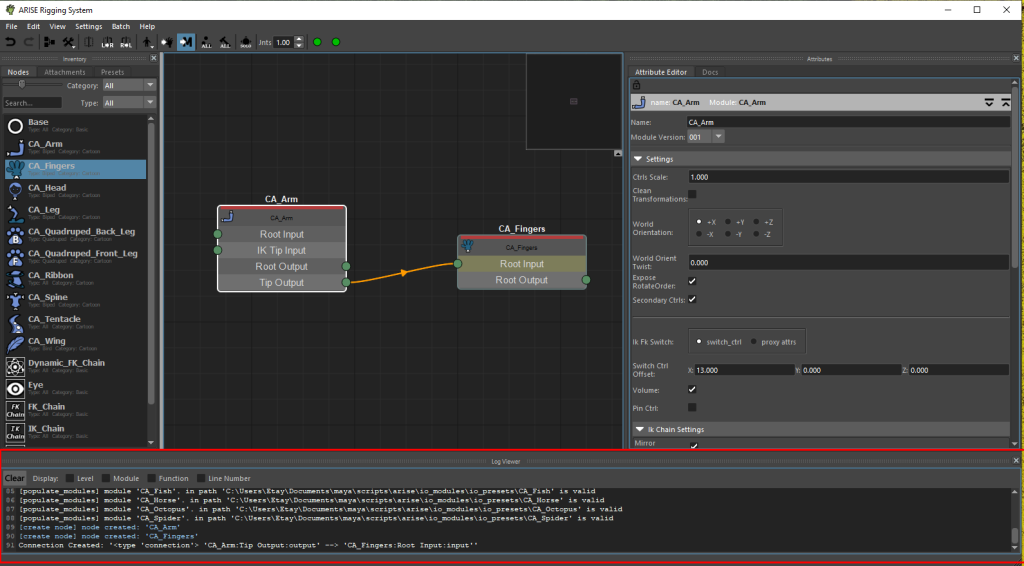
Log UI features:

  • Clear button: Clears the log text.
  • Level checkbox: Displays the level of feedback (read more below).
  • Module checkbox: Display from what module is the feedback from.
  • Function checkbox: Display from what function/method is the feedback from.
  • Line Number checkbox: Display from what line number is the feedback from.
  • Issue Indicator: (As of version 1.06.02) Display indicator to inform the user if a warning or error occurred during the most recent operation.

Having too much information displayed in the ‘Log Viewer’ can be confusing and slows down ARISE operations.
For that, we have the ‘Log Feedback Level’ and the ‘Log Lines Limit’.
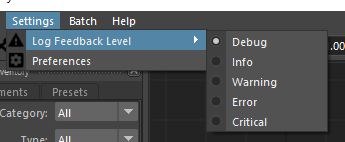
‘Settings’ menu -> ‘Log Feedback Level’.

In general, it is recommended to set the level to ‘Info’ while working, and if a bug occurs, to switch to ‘Debug’ and to report the bug with the log feedback text.
Choosing a level displays that level and all the levels above it; for example, setting to ‘Warning’ will display ‘Warning’, ‘Error’, and ‘Critical’.
The higher levels, such as ‘Warning’, ‘Error’, and ‘Critical’, will speed up ARISE even more, but you might miss important feedback.

The line limit of the ‘Log Viewer’ can be set in the ‘Preferences’ menu -> ‘Log Lines Limit’.
A high line limit might also slow down ARISE.

Feedback Colors:

  • White – ‘Debug’ feedback.
  • Blue – ‘Info’ feedback.
  • Yellow – ‘Warning’ feedback.
  • Red – ‘Error’ and ‘Critical’ feedback.

‘Build’ operations and feedback:
The ‘Log Viewer’ returns important feedback, especially during the ‘Build’ stage.
When there are problems during the ‘build’ stage, one of the feedback lines would be:
‘build finished with errors/warnings. check the log above for more info.’
Scroll up the Log Viewer to find what went wrong, and you can also check out the Maya script editor for more information.

During ‘Build’, the ‘Log Viewer’ displays the order of operations:

  1. The node switches temporarily to ‘Template’ so that the positions and orientations of the guides can be extracted for use in the next operation.
  2. The node builds the rig of the node.
  3. Attachments of type ‘Build’ are built.
  4. Finalize – the joints and ctrls settings are applied (like ctrls color).
  5. Attachments of type ‘Post’ are built.
  6. The rest of the nodes (if there are any) go through the same operations…
  7. Connections pass.
  8. ‘PostScript’ attachments (if there are any) pass.
  9. Storing the Bind Pose values on the ctrls.
  10. Placeholders weight transfer pass.

_____________________________________________
Get Arise at: https://www.ariserigging.com

Updated on May 13, 2026

What are your Feelings

Share This Article :

  • Facebook
  • X
  • LinkedIn
  • Pinterest
Scene SettingsModel Validation Checks
  • Home
  • Pricing
  • Support
  • My account
  • Privacy Policy
  • EULA

Copyright © 2026 - Arise Rigging System

This website uses cookies to ensure you get the best experience. By using this site, you agree to our use of cookies.
Accept
Manage consent

Privacy Overview

This website uses cookies to improve your experience while you navigate through the website. Out of these, the cookies that are categorized as necessary are stored on your browser as they are essential for the working of basic functionalities of the website. We also use third-party cookies that help us analyze and understand how you use this website. These cookies will be stored in your browser only with your consent. You also have the option to opt-out of these cookies. But opting out of some of these cookies may affect your browsing experience.
Necessary
Always Enabled
Necessary cookies are absolutely essential for the website to function properly. These cookies ensure basic functionalities and security features of the website, anonymously.
CookieDurationDescription
cookielawinfo-checkbox-analytics11 monthsThis cookie is set by GDPR Cookie Consent plugin. The cookie is used to store the user consent for the cookies in the category "Analytics".
cookielawinfo-checkbox-functional11 monthsThe cookie is set by GDPR cookie consent to record the user consent for the cookies in the category "Functional".
cookielawinfo-checkbox-necessary11 monthsThis cookie is set by GDPR Cookie Consent plugin. The cookies is used to store the user consent for the cookies in the category "Necessary".
cookielawinfo-checkbox-others11 monthsThis cookie is set by GDPR Cookie Consent plugin. The cookie is used to store the user consent for the cookies in the category "Other.
cookielawinfo-checkbox-performance11 monthsThis cookie is set by GDPR Cookie Consent plugin. The cookie is used to store the user consent for the cookies in the category "Performance".
viewed_cookie_policy11 monthsThe cookie is set by the GDPR Cookie Consent plugin and is used to store whether or not user has consented to the use of cookies. It does not store any personal data.
Functional
Functional cookies help to perform certain functionalities like sharing the content of the website on social media platforms, collect feedbacks, and other third-party features.
Performance
Performance cookies are used to understand and analyze the key performance indexes of the website which helps in delivering a better user experience for the visitors.
Analytics
Analytical cookies are used to understand how visitors interact with the website. These cookies help provide information on metrics the number of visitors, bounce rate, traffic source, etc.
Advertisement
Advertisement cookies are used to provide visitors with relevant ads and marketing campaigns. These cookies track visitors across websites and collect information to provide customized ads.
Others
Other uncategorized cookies are those that are being analyzed and have not been classified into a category as yet.
SAVE & ACCEPT