
A node is like a body part, sometimes also called a module. A rig is built from nodes connected together.
You can create a new node in several ways:
- From the ‘Inventory’ docked widget under the ‘Nodes’ tab, double-click on a node.
- From the ‘Inventory’ docked widget under the ‘Nodes’ tab, drag and drop a node onto the workspace.
- Press Tab when the mouse cursor hovers above an empty spot in the workspace. a quick-create-node window will appear. double-click on a node.
A node has two ‘modes’: ‘Template’ and ‘Build’
- ‘Template’ – Creates guides in the Maya scene for you to position and orient to match your model proportions.
- ‘Build’ – Creates the rig based on the guides positions and orientations.
Node also have ‘states’:
- ‘None’ – When you create an Arise node, no Maya nodes are created yet; the node is in its ‘None’ state,
indicated by a red line at the top of the node. - ‘Template’ – As the name implies, it indicates the node is in ‘Template’ mode, with a blue line at the top of the node.
- ‘Build’ – As the name implies, it indicates the node is in ‘Build’ mode, with a green line at the top of its shape.
- ‘Modified’ – Once a node has been modified, such as changing its connections or attributes, it has to be rebuilt in order for those modifications to take effect. So to indicate the node has been modified, the top of the node will appear yellow .
Naming Convention:
When naming nodes, it’s important to use the prefix “L_” for left, and “R_” for right.
This is because internally, ARISE looks at the name when mirroring and when coloring the ctrls.
Rename A Node:
Node names must start with a letter and consist of 3-25 characters of numbers, letters, and ‘_’.
Renaming a node can be done in a few ways:
- The first attribute on a node will be ‘Name’.
- A ‘Rename’ window will appear when you double-click on a node.
- Right-click on a node (not its attachments) and choose ‘Rename Node‘.
Connections:
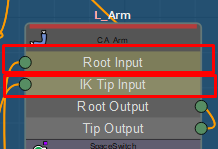
Nodes can be connected to each other so that they move together.
For example, a Fingers node will be connected to an Arm node in order to move with it.
There will be some nodes with more than one connection attribute that needs to be driven.
Driven attributes are the connection attributes with the circle on the left.
In general, all driven connection attributes must be connected.
Template mode:
When switching to ‘Template’ mode the node creates guides in the Maya scene.
Those guides should be positioned and oriented to match the character’s anatomy.
The guides’ positions are used when switching to ‘Build’ mode to create the rig.
It is always possible to switch back to ‘Template’ mode and reposition the guides without losing any progress.
Build mode:
The following happens when switching to ‘Build’ mode:
- The node will build its body part rig.
- Any attachments on the node will also be built.
- Connections between nodes will be created (If both connection’s nodes are in ‘Build’ mode).
If a node is building, you will see a progress bar and feedback will be displayed in the ‘Log Viewer’.
If connections or attachments are not configured properly, errors and warnings will appear in the log.
If there are no errors or warnings, the log will display the following:
‘Build finished successfully.’
If instead, you see:
‘build finished with errors/warnings. check the log above for more info.’
Scroll up the Log Viewer to find what went wrong, and you can also check out the Maya script editor for more information.
Placeholder weights transfer:
Placeholders are temporary joints created to hold the weights until the node is built again.
Placeholder joints are placed in ‘rig_root_grp’|’data_grp’|’placeholders_grp‘ hidden grp.
An indicator on the tools shelf will appear red when there are any placeholder joints.

The node will know how to handle transferring the skinning back to the joints from the placeholders once you switch back to ‘Build’ mode.
When you reduce a node’s number of joints, or delete or replace a node, the placeholder joints will remain, and you will need to manually transfer their weights.
You can transfer skinning from a placeholder to any joint by selecting them in a zigzag order and using ‘Helper Tools’ -> ‘Transfer Weights (Placeholder ->Joint)‘
Ctrls, Joints, Guides:
Even before they are created, nodes contain information about their ctrls, joints, and guides.
That is how attachments can show and modify ctrls and joints.
Skinning Joints:
Not every joint created by an Arise node is intended to be skinned to your character meshes. You can read more about it here.
To select only the skinning joints in the scene go to ‘Helper Tools‘ -> ‘Selection‘ -> ‘Select Skinning Joints‘.
Cleanup:
By switching out of ‘Build’ mode, the Maya objects created by the node are deleted.
This process is called ‘Cleanup’. By ‘tagging’ objects, the node knows which Maya objects it created.
The same applies to objects created by attachments on the node.
Disable a node:
A node can be disabled and ignored until enabled again.
You can disable a node by:
- Right-clicking on the node (not its attachments) and press ‘Disable/Enable Node‘
- Selecting a node and pressing ‘H’ on the keyboard to toggle between disable/enable.
- Selecting a node and pressing Ctrl + ‘H’ to disable, and Shift + ‘H’ to enable.
Delete A Node:
When you delete a node, you will also delete any attachments and any connections it might have.
To delete a node:
- Select the node and press ‘Delete’ (‘Del’) on the keyboard.
- Right-click on the node (not its attachments) and click ‘Delete Node‘.
_____________________________________________
Get Arise at: https://www.ariserigging.com
Follow on LinkedIn


